Introduction
IRC is one of the oldest ways to communicate online and is the basis for most other online chats. IRC allows real time communication but requires few resources on the user's systems compared to other applications you may have used before. This form of chat is elegant in its simplicity but has alot of useful features including the ability to run scripts in Python or Perl, encrypting your messages with FiSHLiM and even transfering files, if so desired.
As a new user it is impossible for us to know your current level of understanding of the various components that make IRC so powerful and useful. That makes the creation of guides and tutorials difficult. Experienced netizens and those with a technical background will find much of this information boring and will want to bypass it all and get on with chatting. The more green recruits will find some things familiar but will have many questions.
This tutorial will help you connect to Digital Hackers IRC network using the Hexchat IRC client. This information also applies to XChat but XChat is very outdated and should NOT be used. We recommend users to choose Hexchat as it is free, under active development and includes the latest version of SSL. Hexchat also supports the latest versions of Perl and has number of themes available. Please read all the steps throughly then begin to set up your client. Hexchat for Windows and Linux is available for download here.
Connecting using non SSL
We no longer allow any non-SSL connections to our network.
Connecting using SSL
With Hexchat there should be no extra steps needed to use SSL. The SSL libraries are installed with Hexchat on Windows and Linux.
To connect to our IRC using SSL do the following:
/server -ssl irc.digitalhackers.com 6697
Note that you need to specify the port number. All our servers use 6697 for SSL connections. You should always use an SSL connection for better security. IRC is a plaintext protocol so it is recommended that you use SSL encryption. Our network no longer allows non-SSL connections.
IRC clients
The IRC client is the application that allows you to connect to the IRC servers. The clients are free, easy to use but the initial setup can be confusing. Each of the links below contain the basic information to get connected to our network.
In order to join our IRC server, you will have to download and install an IRC client. For Windows, Linux and Mac users, I recommend to use Hexchat. To install a client for linux users, sudo apt install hexchat (Mint, Debian and Ubuntu), sudo dns install hexchat (Fedora and RHEL) and sudo pacman -S hexchat (Arch-based).
Connecting to IRC
Ready to get your feet wet? If you have followed our guide, you should have a basic knowledge of IRC networks, what they are and an idea of what is involved connecting to and using them safely. I know, you cannot possibly remember it all. Thats ok, no one knows everything and we dont expect you will. We do hope you found the information useful. You should also have questions. Lots and lots of questions. For those who googled for more info, you get +10 internets. Those who did not, dont sweat it. You are about to go down the rabbithole and the madhatters will be waiting to give you some answers. You will be joining a help channel. At times it is very busy in there so a little patience and courtesy will go a long way. We have heard all the questions before so do not be afraid to ask but we do expect you to do your part in all this. Try to find the answer yourself first. There is an infobot in the channel to assist you by providing answers to the most commonly asked questions. Please utilize this feature upon joining. We have little time for people who are there to create drama so consider this your warning. OK then, grab something to hang on to and click the link below to go to the next step. See you soon!
Configuring Hexchat to connect to the Digital Hackers network:
Start Hexchat and menu will open with several options.
Enter your desired nickname, username (ident) and real name (gecos).
User name is your "ident" and can be the same as your nick or something else but you must know thi sasked. The "real name" in the default setup is "realname". You can change this in Settings>Preferences>Advanced>Miscellaneous. This can be anything you want OTHER than your real name.
Click Add and enter a name for the IRC network (such as Digital Hackers) and press Enter.
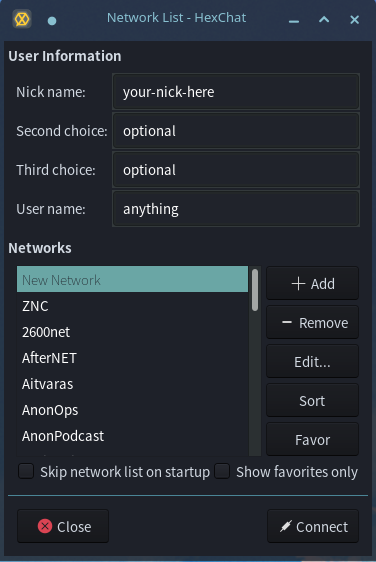
You Should see this:
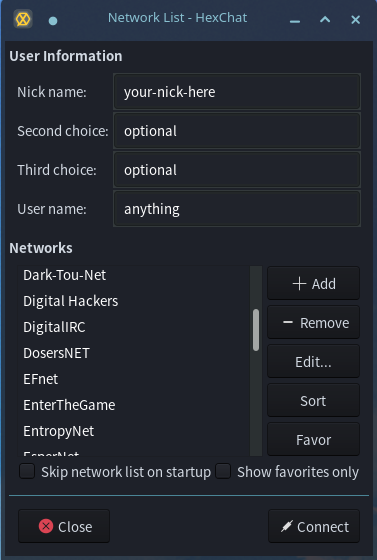
Click Edit.. and a new window opens:
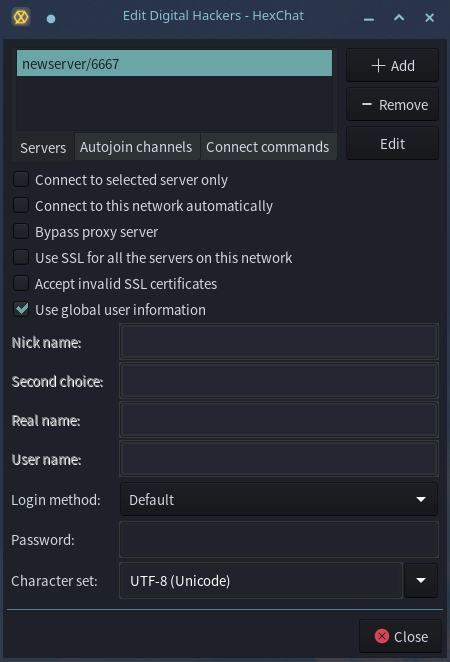
At the top you will see newserver/6667 replace that with irc.digital-hackers.com/6697 and press Enter ot tab. If you failed to press Enter the server name will not be saved.
Mark the following checkboxes :
- Connect to the selected server only
- Use SSL for all the servers on this network
- Accept invalid SSL certificates
- Check use global user information if you will only use one nick/username/real name across all networks, including ours. If you would like to use unqiue information per network, don't check this, and instead fill out the nick/username/real name information below.
Your setup screen should now look like this, if you decided to use the global nick/username/real name information.
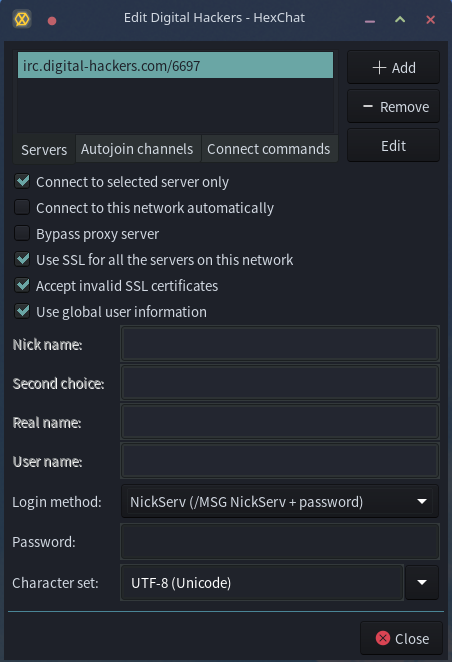
Click Close and then click Connect.
At this point, the client should try to (and successfully) connect to the network.
If you encounter an error, make sure that you spelled the server irc.digital-hackers.com correctly.
Registering your nick
Registering is how you create an account on Digital Hackers network; your nickname belongs to you and nobody else can use it. There are other benefits, of course, including the ability to be recognised and given admin capabilities in channels, to make new channels, etc. All nick functions are controlled by NickServ.
To register your current nick, use:
/msg nickserv register [password] [fake email]
Example:
/msg nickserv register secretpassword fake@email.com
Please note if you lose your password, you will not be able to recover your nick and will have to make a new one.
Identify
You will need to log in to your nick every time you connect to the network. This is called identifying. You identify to your account using NickServ.
To identify to your nick, use :
/msg nickserv identify [your password]
Example :
/msg nickserv identify secretpassword
Once you have registered and log in to your nick, you can now join our main channel by typing /join #main.